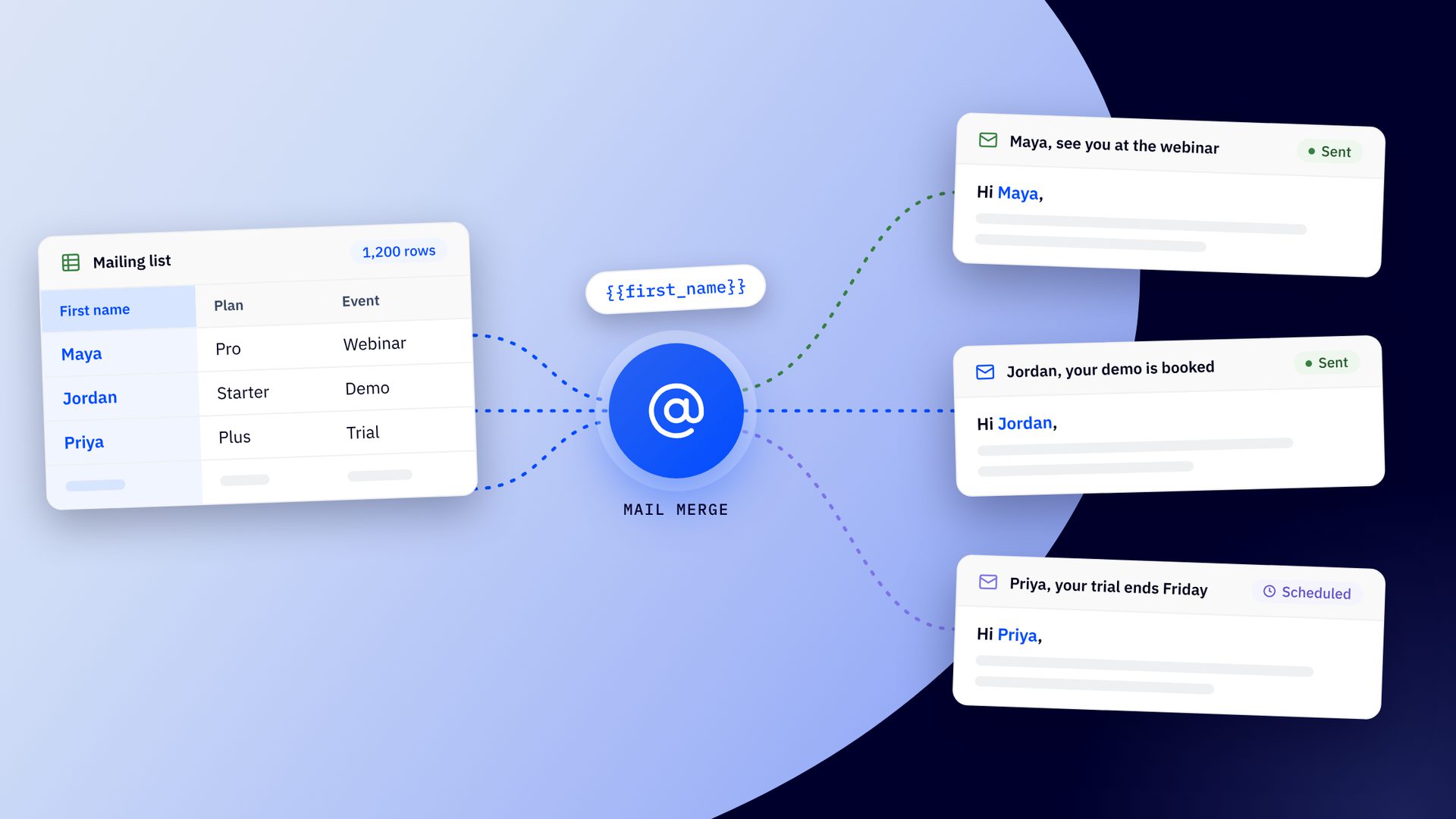
Your spreadsheet has 1,200 names. Gmail will let you email 500 of them today.
Google caps a personal account at 500 messages a day, and hitting the cap can lock you out of sending for up to 24 hours. The other 700 people wait, and so does your launch.
The right mail merge software depends on three things: where you send from, who is on your list, and how personal each email needs to feel. This guide compares eight tools on those points, from a feature built into Gmail to an Outlook add-in you pay for once.
Here's the quick pick for each situation:
- A list of people who signed up: ActiveCampaign
- Gmail outreach with tracking and follow-ups: GMass
- A free start on Gmail or Outlook: Mailmeteor or YAMM
- Attachments or a personal subject line in classic Outlook: Mail Merge Toolkit
- A one-time price in classic Outlook: Easy Mail Merge
- Quick, simple sends: Gmail's mail merge on Google Workspace, or Word's mail merge with classic Outlook
Classic Outlook is the older of the two Outlook for Windows apps. Most Outlook merge tools need it, so check which one you run before you buy.
Mail Merge Software Compared: Price, Free Plans, and Trials
Prices are US list prices for each tool's lowest paid plan, checked in November 2026.
| Tool | Best for | Works with | Starts at | Free plan? | Free trial? |
|---|---|---|---|---|---|
| ActiveCampaign | Lists that signed up | Sends for you, from an imported CSV | $15/mo billed annually (1,000 contacts) | No | Yes, 14 days, no credit card |
| Gmail's mail merge | Simple sends in Workspace | Gmail, from a Google Sheet or Contacts label | $14 per user/mo (Business Standard, one-year plan) | No | No |
| GMass | Outreach with follow-ups | Gmail in Chrome | $20/mo billed annually, $29.95 monthly | No | Yes, 50 emails a day |
| Mailmeteor | A free start | Gmail, Workspace, Outlook | $5.99 per user/mo | Yes, 50 emails a day | No |
| YAMM | Tracking inside Sheets | Gmail and Google Sheets | Varies by billing country | Yes, 20 recipients a day | No |
| Mail Merge Toolkit | Attachments and subject lines | Word and Outlook for Windows | $2.50 per user/mo billed annually | No | Yes, 30 days, 50 recipients per mailing |
| Easy Mail Merge | Paying once | Classic Outlook for Windows | $39.95 one time | No | Yes, up to 10 recipients |
| Word's mail merge | Plain emails to people you know | Word, sending through classic Outlook | Included with Word | Included with Word | No |
How to Choose Mail Merge Software: Start With Your Inbox
Pick the tool that matches where you send from and how big your list is. Those two answers rule out most of the lineup before you compare a single feature.
Mail merge sends one email to a whole list and fills in each person's details. It takes three ingredients: a list with one row per person, an email with placeholders called merge fields, and a tool that sends each copy. Many tools are add-ons, small apps that plug into Gmail, Google Sheets or Outlook.
Tools that send through your own account stop at that account's daily cap, so check yours first:
| Your account | Daily cap |
|---|---|
| Personal Gmail | 500 messages |
| Google Workspace (work, school, Workspace Individual) | 2,000 messages, up to 1,500 of them through Gmail's mail merge |
| Microsoft 365 work account | 10,000 recipients |
Each recipient in a merge gets their own message, so message caps and recipient caps work out the same. Microsoft points businesses to specialist providers for bulk commercial email such as newsletters. A list in the thousands belongs on an email platform.
Four features separate a basic merge from a useful one:
- Subject-line merge fields. Word's own merge sends one subject line to everyone, and some add-ons personalize it.
- Fallback values. A default such as "there" keeps a blank cell from becoming "Hi ,".
- Per-person attachments. Invoices, quotes and certificates need a different file for each row.
- Follow-ups and tracking. You see who clicked, and the tool nudges whoever stayed quiet.
Emailing a List That Signed Up? Start With ActiveCampaign
A mail merge fits a spreadsheet of people you know. An email platform fits a list of people who asked to hear from you.
1. ActiveCampaign: The Pick When Your List Opted In
ActiveCampaign is the best fit when your list opted in and you plan to email it again. It keeps the list, sends for you and handles unsubscribes. It also covers the merge basics: you can import your spreadsheet as a CSV or connect Google Sheets, then personalize each send.
A merge sends the same message to every row, and that hides a problem. Your list holds several audiences, and one message can't speak to all of them.
You are sending the one single message to all of your audience, but you actually have multiple audiences that you just don’t know.
Here's what ActiveCampaign adds to a basic merge:
- Merge-style personalization. Personalization tags such as %FIRSTNAME% fill in each contact's details, and default values cover blank fields.
- AI Campaign Builder. Active Intelligence: Wavelength drafts the layout, copy, subject lines and images from one prompt, using your Brand Kit and your top-performing campaigns. See the AI Campaign Builder.
- AI-suggested segments. Segmentation surfaces audiences you didn't think to build, such as likely repeat buyers or at-risk subscribers, so one message becomes several.
- Smarter timing and content. Predictive Sending picks a send time for each contact, and predictive and conditional content change the message by contact. Both start on the Pro plan.
- Deliverability tools. Verified authentication, dedicated IP management and real-time monitoring come with the platform. See how ActiveCampaign handles deliverability.
- Insights on a schedule. Scheduled Tasks deliver fresh performance insights to your inbox on the schedule you set.
ActiveCampaign reports that marketers see 75% higher engagement with Active Intelligence.
Starter costs $15 a month for 1,000 contacts, billed annually. Starter and Plus apply limits to Active Intelligence, and Starter caps each automation at five actions. Teams that want the full set look at Pro ($79). Sending limits run monthly instead of daily, at 10x your contact limit on Starter.
The 14-day free trial needs no credit card and covers up to 100 contacts and 100 email sends.
Best for: a list of people who signed up, especially one with more than one audience.
Skip if: you want cold outreach to people who never opted in, which ActiveCampaign's acceptable use policy rules out. Skip it too for a one-off email to a few dozen people you know, where a free built-in merge does the job. For more platform options, see our guide to the best mass email software.
Mail Merge for Gmail: Four Tools, Four Trade-Offs
Gmail users get the widest choice, from a built-in feature to add-ons with tracking and follow-ups. Each tool sends through your account, so Gmail's daily caps apply. GMass can get around them by spreading a send over several days or routing it through an outside mail server.
2. Gmail’s Mail Merge: Free If Your Workspace Plan Already Has It
Gmail's built-in mail merge is the easiest option if your Google Workspace plan includes it. Google lists seven eligible plans: Workspace Individual, Business Standard, Business Plus, Enterprise Standard, Enterprise Plus, Education Standard and Education Plus. Free Gmail and Business Starter don't have it. Business Standard costs $14 per user a month on a one-year plan, or $16.80 month to month.
Here's how a send works:
- Open a new message in Gmail on a computer and click Use mail merge next to the To line.
- Add recipients from a Google Sheet or a Google Contacts label.
- Type @ in the body to insert tags such as @firstname, or any column from your sheet.
- Preview, then send.
Each email carries a unique unsubscribe link, and anyone who unsubscribes drops out of your future merges. The limit is 1,500 recipients per message and per day, counted together with your regular mail. You can't use Cc or Bcc when recipients come from a Sheet, and the feature can't send from a secondary domain or domain alias. Google doesn't list tracking or follow-ups among its features, so treat it as a way to send individual copies rather than a campaign tool.
Best for: Workspace users sending fewer than 1,500 emails a day.
Skip if: you're on free Gmail or Business Starter, or you send from a domain alias.
3. GMass: The Gmail Pick for Follow-Ups and Tracking
GMass is the strongest pick for Gmail outreach that needs tracking and automatic follow-ups. It's a Chrome extension that lives inside Gmail. Connect a Google Sheet, and each row becomes a recipient and each column becomes a merge field.
Here's what GMass adds to a basic merge:
- Tracking and follow-ups. Reports show opens, clicks and replies, and automatic follow-ups nudge people who haven't answered.
- Deeper personalization. Conditional "if...then" content, fallback values and personalized attachments go well past a first name.
- Ways past Gmail's cap. GMass can spread a large send over several days or use an outside mail server.
- Pre-send checks. Spam Solver flags spam risks in your email before you send it.
- Scheduling and testing. Schedule a send for later, or test two versions and send the winner.
Standard costs $29.95 a month, or $20 a month billed annually. GMass puts automatic follow-ups on its Premium plan, at $39.95 a month or $29 a month billed annually (GMass pricing). There's no free plan, only a free trial capped at 50 emails a day. GMass works with Gmail only, in Chrome on a desktop.
Best for: sales and outreach emails sent from Gmail.
Skip if: you want a free plan, or you're emailing a list that signed up.
4. Mailmeteor: The Low-Cost Way In on Gmail or Outlook
Mailmeteor is the cheapest way to start on either Gmail or Outlook. It connects to Gmail and Google Workspace, and to Outlook.com, Hotmail, Live and Microsoft 365 accounts through a Microsoft sign-in. You write the email in its own editor and pull recipient data from a Google Sheet.
The free plan sends 50 emails a day. Starter costs $5.99 per user a month and raises the cap to 250 a day, removes Mailmeteor branding and adds reply detection and full analytics. The higher tiers reach 1,000 and 2,000 emails a day. Your Gmail or Outlook account's own limits still apply on top.
Best for: a free start, or a team split between Gmail and Outlook.
Skip if: you need more than 50 emails a day without paying.
5. YAMM: The Google Sheets Pick That Tracks Every Send
YAMM (Yet Another Mail Merge) is the Sheets pick for people who want results tracked where their list already lives. It runs inside Google Sheets, sends through Gmail, and reports opens, clicks, responses, bounces and unsubscribes back in your spreadsheet.
YAMM's plans list tracking and scheduling but no follow-up sequences, so you chase non-responders yourself.
Daily limits depend on your account and plan:
- Free plan: 20 recipients a day
- Pro on a gmail.com account: up to 400 recipients a day
- Pro on a confirmed Workspace account: up to 1,500 recipients a day
- New Workspace accounts: 400 a day during a 14-day trial and warm-up
Sending personalized attachments on a Gmail Pro plan drops the daily limit to 100. YAMM's pricing page shows prices by billing country, so check the number for yours before you subscribe.
Best for: Workspace users who want each send's results tracked in the sheet.
Skip if: you need automatic follow-ups, or a price you can compare at a glance.
Mail Merge for Outlook: Check Which Outlook You Run First
Which Outlook you run decides what works. Outlook for Windows comes as a classic app and a new app, and the two behave differently. Word hands its merged email to Outlook through a Windows messaging link that the new app doesn't support. Microsoft's feature comparison lists mail merge as partially available in the new Outlook and shows older-style COM add-ins as unsupported there.
Make sure your tool names the Outlook it works with before you pay.
6. Word’s Mail Merge: Free, Familiar and Plain
Word's own mail merge is the free option if you already work in Word and classic Outlook. Microsoft's steps start at Mailings, then Start Mail Merge, then E-mail Messages. Word needs a default email program to hand mail to, such as Outlook, and Merge to E-mail stays unavailable until you set one.
Word sends an individual message to each address. You can't add Cc or Bcc recipients or attachments, though links are fine. The subject is one line you type for everyone.
Best for: a plain, personalized email to people you know.
Skip if: you need attachments, a different subject line per person, or the new Outlook.
7. Mail Merge Toolkit: Fills the Gaps in Word’s Merge
Mail Merge Toolkit is the add-in for classic Outlook users who need attachments, Cc or a personalized subject line. It extends Word's own merge instead of replacing it, so you keep the same wizard and gain more control.
Here's what the add-in lets you do:
- Personalize the subject line with data fields from your list
- Attach files, including a personal attachment for each recipient
- Create personalized PDF or DOCX attachments from your document
- Add Cc and Bcc recipients to each message
- Read data from Excel, CSV or a database
It runs in Microsoft 365 apps for Windows and Microsoft Office 2003 to 2021, and MAPILab lists no Mac version. MAPILab sells it in Standard and Professional editions at $2.50 and $8.25 per user a month, billed annually. The 30-day trial sends to 50 recipients per mailing. MAPILab doesn't say whether the add-in runs in the new Outlook for Windows, so confirm that before you buy.
Best for: classic Outlook users who need attachments, Cc or a personalized subject line.
Skip if: you're on a Mac, or on the new Outlook without confirming support.
If Mail Merge Toolkit doesn't fit, try one of these instead:
- Easy Mail Merge, to pay once
- Word's own mail merge, for names and a plain message
- An email platform, for a list that signed up
- Mailmeteor, which connects through a Microsoft sign-in instead of a desktop add-in
8. Easy Mail Merge: Pay Once, Send From Classic Outlook
Easy Mail Merge is the pick for people who would rather buy software than rent it. A lifetime license costs $39.95, with a year of free upgrades and a 30-day money-back guarantee. The trial sends to 10 recipients.
Here's what it handles:
- Imports from Outlook contacts, Excel or CSV files and Exchange distribution lists
- Attachments that differ for each recipient
- Scheduling and pacing, with limits on how many emails go out per hour or per day
- A campaign manager to pause and resume sends
- Tracking and unsubscribe handling built into the add-in
- From-address rotation across several Outlook accounts
The pacing controls help on a work account, where Microsoft 365 applies daily recipient caps and rate limits. You set the speed that keeps you under them. Easy Mail Merge supports classic Outlook for Windows, including the Microsoft 365 desktop app.
Best for: classic Outlook users who'd rather pay once.
Skip if: you're not on classic Outlook for Windows.
How to Run a Mail Merge Without Embarrassing Yourself
A merge sends real emails from your real account, so mistakes land in real inboxes. These habits catch most of them.
Test With Your Messiest Row
Send a test from a copy of your list with your own address in every row. Then add your ugliest records: a blank first name, a 40-character surname, a company name with an ampersand. If the merge survives those, it will survive the list.
Set a Fallback Before You Need One
A blank cell turns "Hi %FIRSTNAME%," into "Hi ,". Set a default such as "there" for every field you use. In ActiveCampaign, default values live on the field itself. Most merge tools offer a fallback setting, so check yours before the first send.
Personalize Past the First Name
A first name no longer reads as personal. Perry Tinoco, a senior lifecycle marketing manager at ActiveCampaign, puts it plainly.
You can’t just use first name anymore. That’s kind of a copout in terms of personalization.
Add two or three columns to your sheet before you merge, such as what they bought, which plan they're on, or which event they attended. Use those columns to change a full sentence, not a single word.
Use the buyer's own vocabulary too. A nonprofit has supporters and volunteers, and every industry has its own word for the person doing the buying. Active Intelligence can apply that vocabulary across industries, so one marketer doesn't have to know them all.
A merge can swap a word or a sentence. Changing the offer or the order of a message by segment takes an email platform.
Send in Waves
Start with the contacts who engage most, release the rest in batches, and resend to non-openers a few days later. A staggered send keeps you under daily caps and gives you time to fix a problem before it reaches everyone. If results sag, check your authentication and your provider's rules before you rewrite the subject line.
Follow the Opt-Out Rules
Every marketing email needs a working opt-out. The CAN-SPAM Act requires your postal address and an opt-out you honor within 10 business days, with no exception for business-to-business email. Gmail's merge adds an unsubscribe link for you, and other tools vary, so check yours.
Once you send 5,000 or more messages a day to personal Gmail addresses, Google treats you as a bulk sender. That means authenticated email, one-click unsubscribe and a spam rate below 0.10%.
When a Merge Breaks
| Where | What goes wrong | Fix |
|---|---|---|
| Gmail's mail merge | It can't read your list | Put the details on the sheet's first tab, as plain text |
| Gmail's mail merge | It won't send from a domain alias or secondary domain | Send from your main address |
| New Microsoft 365 account | On the default onmicrosoft.com address, external sends stop at 100 recipients a day (error 550 5.7.236) | Send from your own domain |
| Word | Merge to E-mail is unavailable | Set classic Outlook as your default email program |
| Word | The merge finishes but nothing sends | Switch to classic Outlook, because the new Outlook doesn't accept Word's handoff |
Turn your spreadsheet into campaigns that keep working
Import your list, let Active Intelligence draft the first email, and see how each audience responds. Try ActiveCampaign free for 14 days, with no credit card required.
Mail Merge Software FAQ
What is the best mail merge software?
The best mail merge software depends on where you send from and who is on your list. ActiveCampaign fits a list of people who signed up, GMass fits Gmail outreach with follow-ups, and Mail Merge Toolkit fits attachments in classic Outlook. Gmail’s own merge and Word’s merge cover simple sends at no extra cost.
How do I choose mail merge software?
Start with where you send from and how many people are on your list. Then compare personalization depth, attachments, follow-ups and tracking, and how the price grows. A per-user subscription, a one-time license and a per-contact platform fee all scale differently. Test your shortlist on your messiest row during a trial, and confirm your version of Outlook is supported.
How do you do a mail merge in Gmail?
Gmail’s built-in mail merge needs an eligible Google Workspace plan. On free Gmail, use an add-on such as Mailmeteor, YAMM or GMass.
With the built-in feature, follow Google’s steps:
- Open Gmail on a computer and start a new message.
- Click Use mail merge next to the To line.
- Add recipients from a Google Sheet or a Google Contacts label.
- Type @ in the body to insert merge tags.
- Preview the message, then send.
How do you do a mail merge in Outlook?
Use Word’s mail merge with classic Outlook for Windows as your default email program.
Follow Microsoft’s steps:
- Write your email in Word.
- Go to Mailings, then Start Mail Merge, then E‑mail Messages.
- Select your recipients from an Excel sheet or Outlook contacts.
- Insert a merge field for each placeholder.
- Choose Finish & Merge, then Send Email Messages, and type a subject line.
What is the difference between mail merge and email automation?
Mail merge sends one personalized email to a list at one moment. Email automation sends a series of emails over time, triggered by what a contact does, such as signing up, buying or clicking a link. A merge fits an announcement to people you know. Marketing automation fits a welcome series or follow-up for people who signed up.
Is there free mail merge software?
Yes, with limits. Mailmeteor’s free plan sends 50 emails a day, and YAMM’s sends to 20 recipients a day. Word’s mail merge costs nothing beyond Word, through classic Outlook for Windows. Gmail’s built-in merge needs a paid Workspace plan. ActiveCampaign offers a 14-day free trial instead of a free plan. Free options fit a test or a small send to people you know.
Can Copilot do mail merge?
Microsoft doesn’t document a way for Copilot to run a merge. Its Copilot in Outlook pages cover drafting, summarizing and coaching. Copilot can help write the email, while the merge itself still runs from Word’s Mailings tab through classic Outlook for Windows.