The sales integrations worth connecting first are the ones that carry a lead from interest to a booked meeting, a call, and a signed contract without anyone re-typing data. For most teams, that means a scheduler, a phone or SMS tool, an eSignature app, and a reporting connector, all feeding one CRM record.
If you work in marketing, your influence continues after the lead reaches sales. Reps have better conversations when they can see which email a prospect clicked, which meeting they booked, and which call finished. The integrations below put that context on the contact record in ActiveCampaign, where your automations and your reps can both use it.
This guide covers eight types of sales integrations, how to choose between them, a five-step rollout plan, common mistakes, and the numbers that show whether the stack is working.
What makes a sales integration worth connecting?
A sales integration is worth connecting when it writes activity back to the contact record and lets your automations react to it. A tool that only lives in its own tab is one more place a rep has to remember to check.
Check every integration against these four questions:
- Does it sync both ways? Bi-directional apps send data into ActiveCampaign and read from it. Each integration page lists the sync direction.
- Where does the data land? Calls, meetings, and signed documents should appear on the contact profile, often as a custom object record, so reps see them without switching tools.
- Can it trigger or segment? Call outcomes, meeting status, and document status should work as automation triggers and conditions.
- Is it available on your plan? Plan availability and any requirement on the partner's side are listed on each integration page. Calendly, for example, requires a Calendly Professional, Teams, or Enterprise plan.
Start with the CRM that marketing and sales share
Every integration below works best when sales and marketing read from the same record. ActiveCampaign's sales CRM and marketing automation share one set of contact data. First-party data such as form submissions and third-party data from your connected apps end up in one timeline.
That shared record changes how reps prepare. A rep who opens a contact can see the email click-through in the activity record and open the conversation with the topic the prospect already engaged with. The rep starts from what the prospect cares about, and you can start building that picture from the first form fill.
ActiveCampaign connects with 1,000+ apps and integrations, including apps built by ActiveCampaign and partner apps. Browse the directory to see what exists for your stack.
Eight types of sales integrations to connect with ActiveCampaign
Each integration below covers one stage of the sales process. Pick the stages where your team loses time or leads today, and connect those first.
1. Appointment scheduling: Calendly and Google Calendar
A scheduling integration turns a booking into data your automations can use. With the Calendly integration, contacts can be added to specific lists or segments based on what they enter on the booking form. A deal can be created or updated when a contact books, changes, or cancels a meeting.
Use these Calendly capabilities to support your reps:
- Qualify leads from the booking form. Map custom Calendly questions to ActiveCampaign custom fields, so reps see budget, role, or need before the call.
- Keep the pipeline current. Let a booking, reschedule, or cancellation update the deal without a rep touching it.
- Follow up on meeting status. Send a check-in email after a completed meeting to answer open questions, and a reschedule link after a cancellation.
For calendar sync inside the CRM, the Google Calendar integration adds an event when a deal is created or moves to a new pipeline stage, so follow-up tasks show up where reps already plan their day.
2. Phone calls: Aircall and JustCall
A phone integration logs every call on the contact record and turns call outcomes into automation triggers. The Aircall integration is bi-directional. Calls appear on the contact profile in a dedicated Aircall custom object, and call date, direction, tags, and comments can trigger and segment your automations. Contact details also appear in the Aircall phone while it rings, so reps take the call with context.
The JustCall integration adds click-to-call and click-to-text buttons on every contact. It logs calls and texts as notes on the contact and shows call analytics, recordings, voicemails, and missed calls.
Try these call-based automations:
- Missed-call follow-up. When a call is missed, send a short email or text with a link to book a time.
- Post-call check-in. After an answered call, wait a day and send a recap with next steps.
- Call-based segments. Group contacts by call outcome, so marketing stops sending a nurture email to someone who is mid-negotiation.
3. SMS: Salesmsg
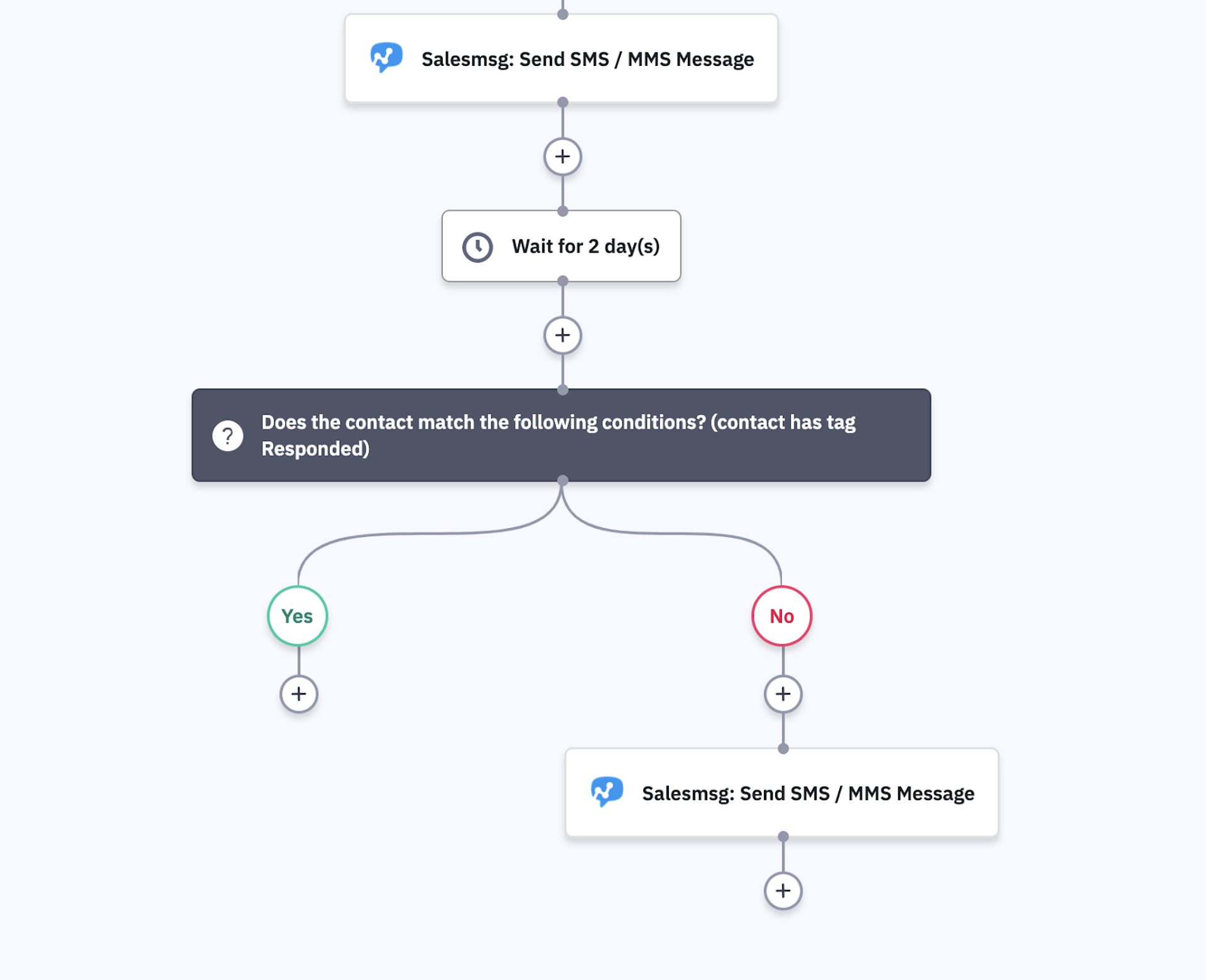
An SMS integration lets reps and automations text contacts who have agreed to receive messages, with every message logged on the contact. The Salesmsg integration works in two ways. You can add Salesmsg SMS and MMS steps to any ActiveCampaign automation, or reps can hold two-way conversations from the Salesmsg inbox, mobile app, or Chrome extension.
Use SMS for time-sensitive sales moments:
- Appointment reminders before a scheduled call
- Post-meeting follow-ups that keep the conversation moving
- Quick replies from a rep who has the full contact history open
Collect explicit permission before you text anyone, and record it on the contact. The automation below shows the pattern: send a message, wait two days, check whether the contact replied, and send a second message only to those who did not.
4. eSignature and proposals: DocuSign, Dropbox Sign, and PandaDoc
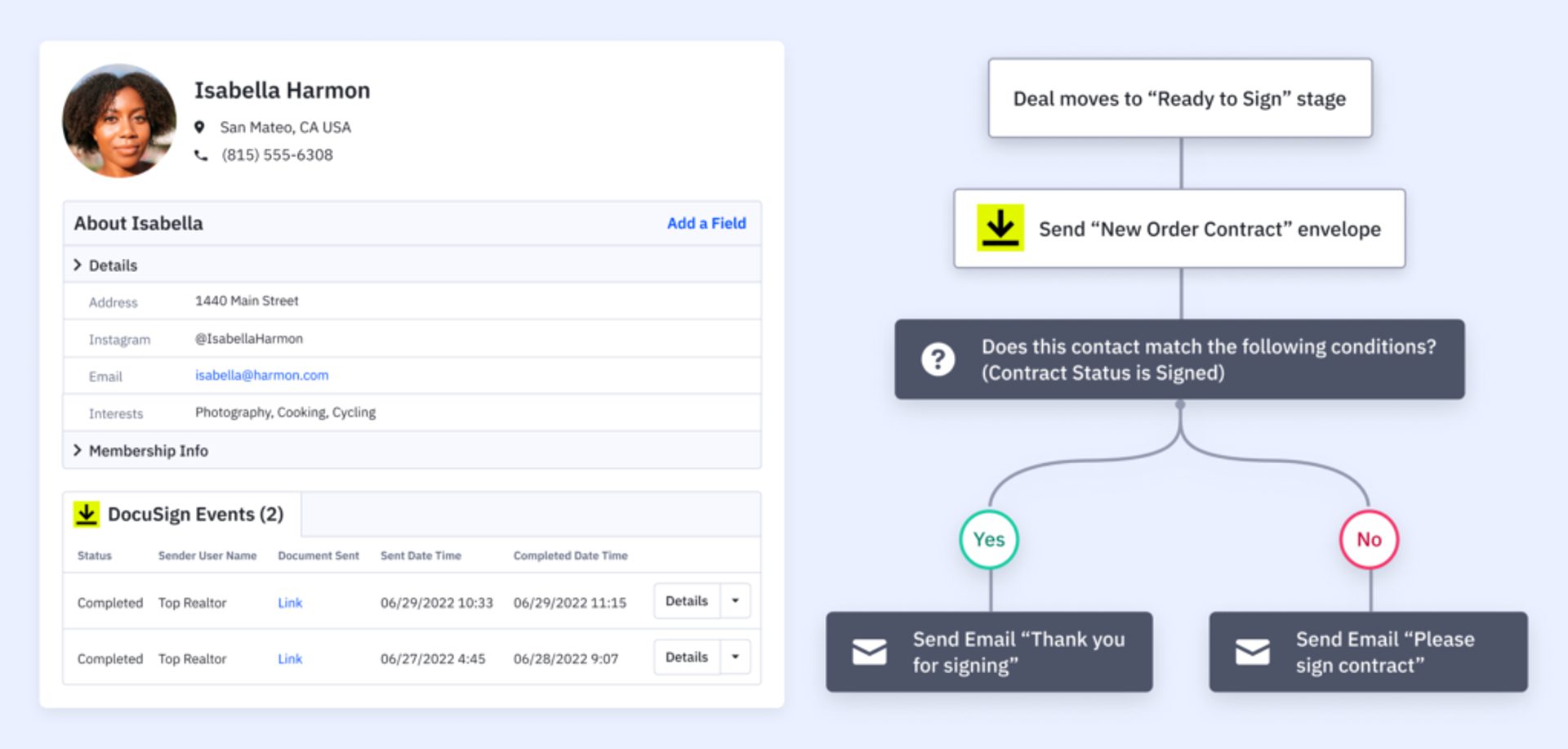
An eSignature integration creates a pre-filled document when a deal reaches the right stage and reports the signing status back to the contact. The DocuSign integration can draft a document at the right time, create an envelope pre-filled with the contact's information, and then send a welcome email, notify your team, add the contact to a segment, or move the deal when the document is completed.
The Dropbox Sign integration (formerly HelloSign) adds the same kind of step to your automations from the CX Apps action list, with pre-populated fields and an audit trail on each signature request. The PandaDoc integration fills quotes, proposals, and contracts with ActiveCampaign data and lets you refresh a document when the deal details change.
In the example below, a deal moving to a Ready to Sign stage sends the contract. The automation then checks the contract status and sends either a thank-you email or a reminder.
5. CRM sync: Salesforce
If your sales team works in Salesforce, the Salesforce integration keeps records in both systems in sync, so marketing can nurture leads through the sales cycle with the same data reps see. It supports triggered follow-up emails based on what you know about each prospect, plus segment and content testing. Check the integration page for the plans that include it.
Agree on which system owns each field before you turn it on. Two systems that both write to the same field overwrite each other.
6. Team alerts: Slack
A Slack alert tells the right person the moment a prospect acts. The Slack integration is built by ActiveCampaign and sends real-time alerts to sales, marketing, and support teams from your automations.
Set alerts for moments when speed matters:
- A contact asks for a demo or a quote
- A lead reaches your sales-ready score
- A high-value deal stalls in one stage
Keep alerts rare. A channel that pings all day gets muted, and then the alert that matters is missed.
7. Reporting: Supermetrics and Looker Studio Connector
A reporting connector moves your ActiveCampaign data into the tool where leadership reads it. The Supermetrics integration pulls the metrics you choose from ActiveCampaign into spreadsheets or data warehouses, with no coding. The Looker Studio Connector by Find My Insight builds shareable dashboards for email and CRM metrics that load key numbers and trends.
Pick the spreadsheet route if your team already reports in Excel or Google Sheets. Pick dashboards if executives and clients read results at a glance. For reporting inside the platform, see ActiveCampaign analytics and reporting.
8. Everything else: Zapier
Zapier connects ActiveCampaign to apps that have no native integration. The Zapier integration lets you build Zaps without code that import and update contacts, deals, and notes in ActiveCampaign when something happens in another app, or the other way round.
Use a native integration when one exists, because it usually logs richer data on the contact. Use Zapier for the long tail, such as a niche industry tool or an internal form.
How to roll out sales integrations in five steps
Connect sales integrations one at a time, starting with the stage where leads wait the longest. A staged rollout shows which tool changed which number.
Follow these steps to roll out your sales stack:
- Map the handoff. Write down each step from form fill to closed deal, who owns it, and where leads stall. See sales pipeline management best practices for stage design.
- Connect one integration per bottleneck. If leads wait for a meeting, start with scheduling. If contracts stall, start with eSignature.
- Decide which events trigger automations. Choose the events that deserve action, such as a missed call, a booked meeting, or a signed document, and give each one a clear next step.
- Test with a dummy contact. Book a test meeting, log a test call, and send a test document. Check that each lands on the contact record and fires the automation you expect.
- Train the team and review monthly. Show reps where the data appears. Review which automations still earn their place, and retire the rest.
Example: from booked meeting to signed contract
One connected workflow can cover the whole sales cycle:
- A prospect books a meeting in Calendly, and the integration creates a deal in your pipeline.
- A Slack alert from your automation tells the assigned rep. The booking-form answers are already on the contact record.
- After the call, the rep moves the deal to a Ready to Sign stage.
- The DocuSign integration sends a pre-filled contract.
- When the contract is signed, ActiveCampaign sends a welcome email and moves the deal to the next stage.
Common mistakes when connecting sales tools
Most integration problems start with process gaps in how the team uses the tools. Watch for these five.
Avoid these common mistakes:
- Connecting everything at once. Ten new data flows make it impossible to tell what broke or what helped.
- Skipping field mapping. If a Calendly answer lands in the wrong field, reps lose trust in the data and stop reading it.
- Letting two tools own the same field. Choose one source of truth per field, especially with a CRM sync.
- Texting without permission. Record consent for SMS on the contact, and honor opt-outs in every automation.
- Never checking the logs. A broken connection fails quietly. Review each integration's activity on a test contact every month.
How to tell whether your sales integrations are working
Your sales integrations are working when leads move faster and reps spend their time on conversations. Pick a baseline before you connect anything, then compare after thirty to sixty days.
Track these measures:
- Speed to first contact: the time between a form fill and a rep's first call or email
- Meeting booked rate: the share of qualified leads that book a meeting
- Stage-to-stage conversion: where deals drop out of the pipeline
- Time in stage: how long deals wait for a document, a call, or an answer
- Contract turnaround: the time from sent to signed
If one measure stays flat, look at the integration behind that stage first. Our guide to lead scoring shows how to define a sales-ready lead, which makes handoff timing much easier to measure.
How ActiveCampaign supports your sales team’s growth
ActiveCampaign is an AI platform for marketers, with Active Intelligence built into every plan. Active Intelligence works from your own contact data and history, so the more of your sales process lives on the contact record, the more context it has.
These ActiveCampaign features connect the integrations above:
- Shared contact record. Calls, meetings, texts, and signed documents sit next to email activity on one timeline.
- Automations. Any integration event can trigger a deal, a task, an email, or a team alert.
- Win probability. Active Intelligence analyzes the likelihood that each deal closes, so your reps can focus on the opportunities most likely to convert.
- Custom objects. Partner data such as calls and meetings is stored as a structured record on the contact profile.
You set the rules and approve what runs. For more ways to use the CRM, read how to build a CRM workflow and what CRM automation looks like in practice.
Connect your sales tools with ActiveCampaign
Frequently asked questions about sales integrations
Which integrations help a sales team grow the most?
The integrations that remove waiting help most: scheduling, phone and SMS logging, and eSignature. Each one shortens a step between interest and a closed deal and writes the result to the contact record.
Do I need Zapier to connect my sales tools to ActiveCampaign?
You need Zapier only for tools without a native integration. Scheduling, calling, SMS, eSignature, and reporting tools such as Calendly, Aircall, Salesmsg, DocuSign, and Supermetrics have their own integrations.
Can sales reps see marketing activity inside ActiveCampaign?
Yes. Reps can open a contact and see email engagement, form submissions, and activity from connected apps on one timeline. That context helps them personalize the first conversation.
How many sales integrations should I connect first?
Start with one or two that fix your biggest bottleneck, such as scheduling or eSignature. Confirm that the data lands correctly and the automations fire, then add the next one.