A CRM workflow is the set of steps, rules, and automations that moves a contact through your CRM, from first touch to closed deal and repeat purchase. A good one tells every person on your team what happens next, and runs the repetitive parts for them.
Most workflows break for the same three reasons: they copy a broken process, they grow too complicated, or nobody checks them after launch. The seven tips below address each one, whether you run a single pipeline or five.
What is a CRM workflow?
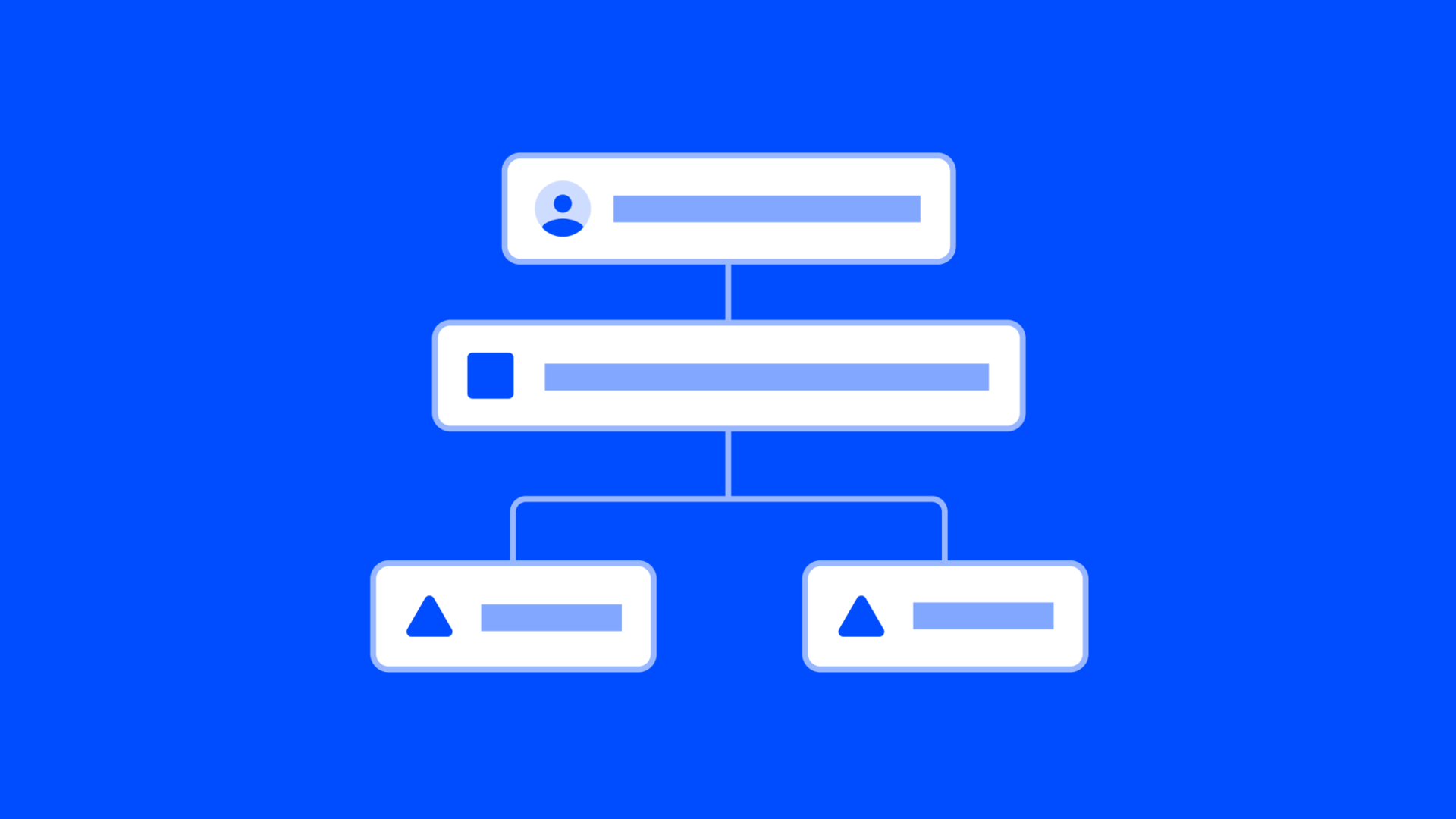
A CRM workflow is a repeatable sequence of actions your CRM runs when a contact does something or a deal reaches a new stage. Every workflow, in every tool, follows the same pattern.
A CRM workflow has three parts:
- Trigger: the event that starts it, such as a form submission, a purchase, or a deal moving to a new stage.
- Condition: the rule that decides whether to continue, such as a lead score above 50 or a contact in a certain region.
- Action: what the CRM does next, such as sending an email, creating a task, or assigning the deal to a rep.
Take a new lead who fills in a demo request form. The form is the trigger. A check on company size is the condition. The actions are a confirmation email, a new deal in your pipeline, and a task for the right rep to call within a day.
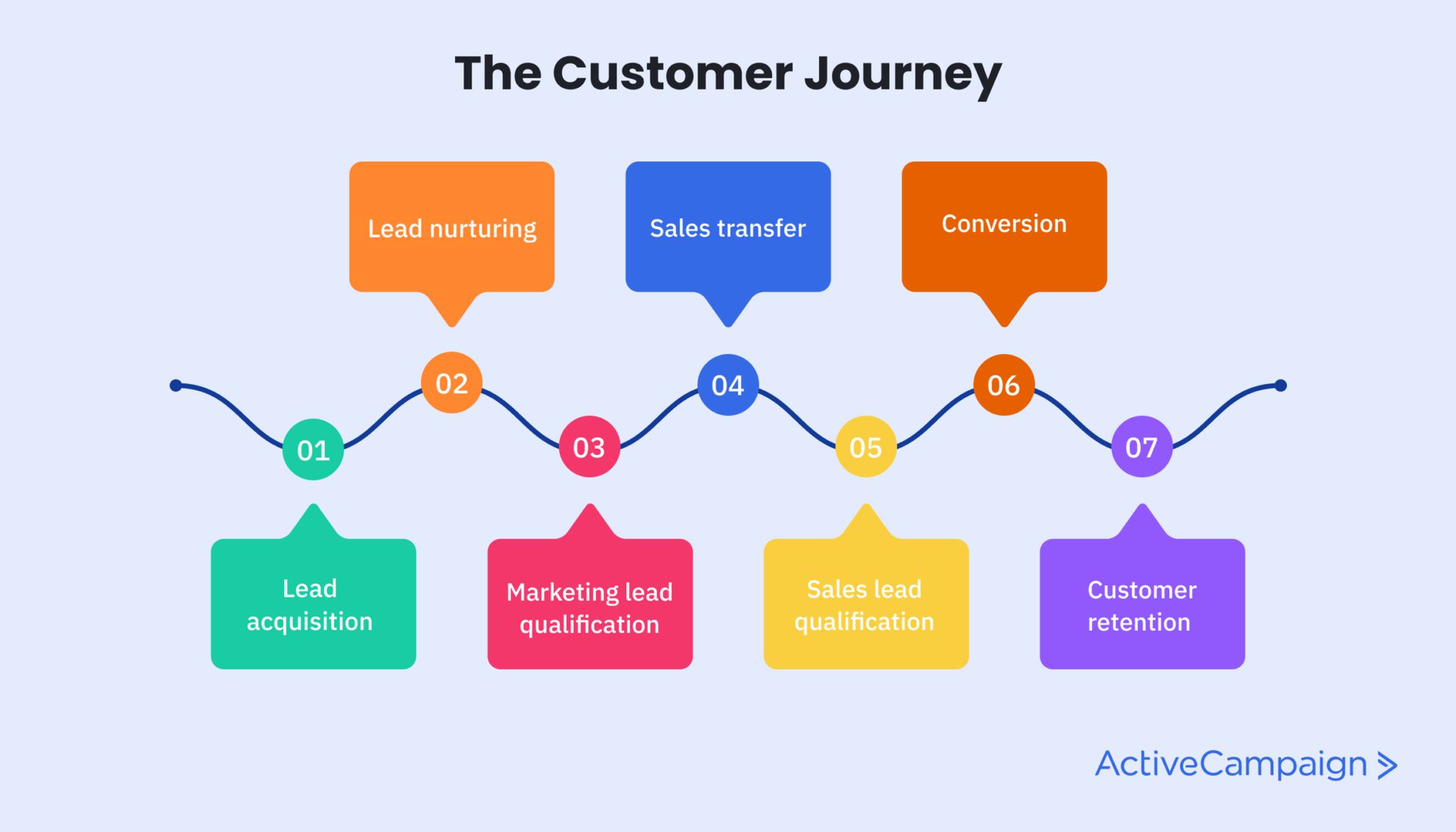
Most workflows connect the same stages of the customer journey: lead acquisition, lead nurturing, marketing qualification, sales qualification, sales transfer, conversion, and customer retention.
CRM workflows commonly cover these processes:
- Lead capture and routing
- Lead nurturing and follow-up emails
- Deal stage changes and sales handoffs
- Onboarding for new customers
- Support requests and complaints
- Renewal reminders and invoicing
Once a process lives in a workflow, you can see where every contact is, who owns the next step, and where things stall.
Why use a CRM to manage your workflow?
A CRM keeps every conversation, deal, and task in one system, so marketing, sales, and support all work from the same record. That shared view is what makes a workflow reliable. Three benefits matter most.
Automate repetitive tasks
Automation handles the steps that never change, so your team can spend its time on the conversations that do. An automation is a trigger and a set of actions that run without anyone clicking send. A customer buys, and a confirmation email goes out. A visitor joins your newsletter, and a welcome series starts.
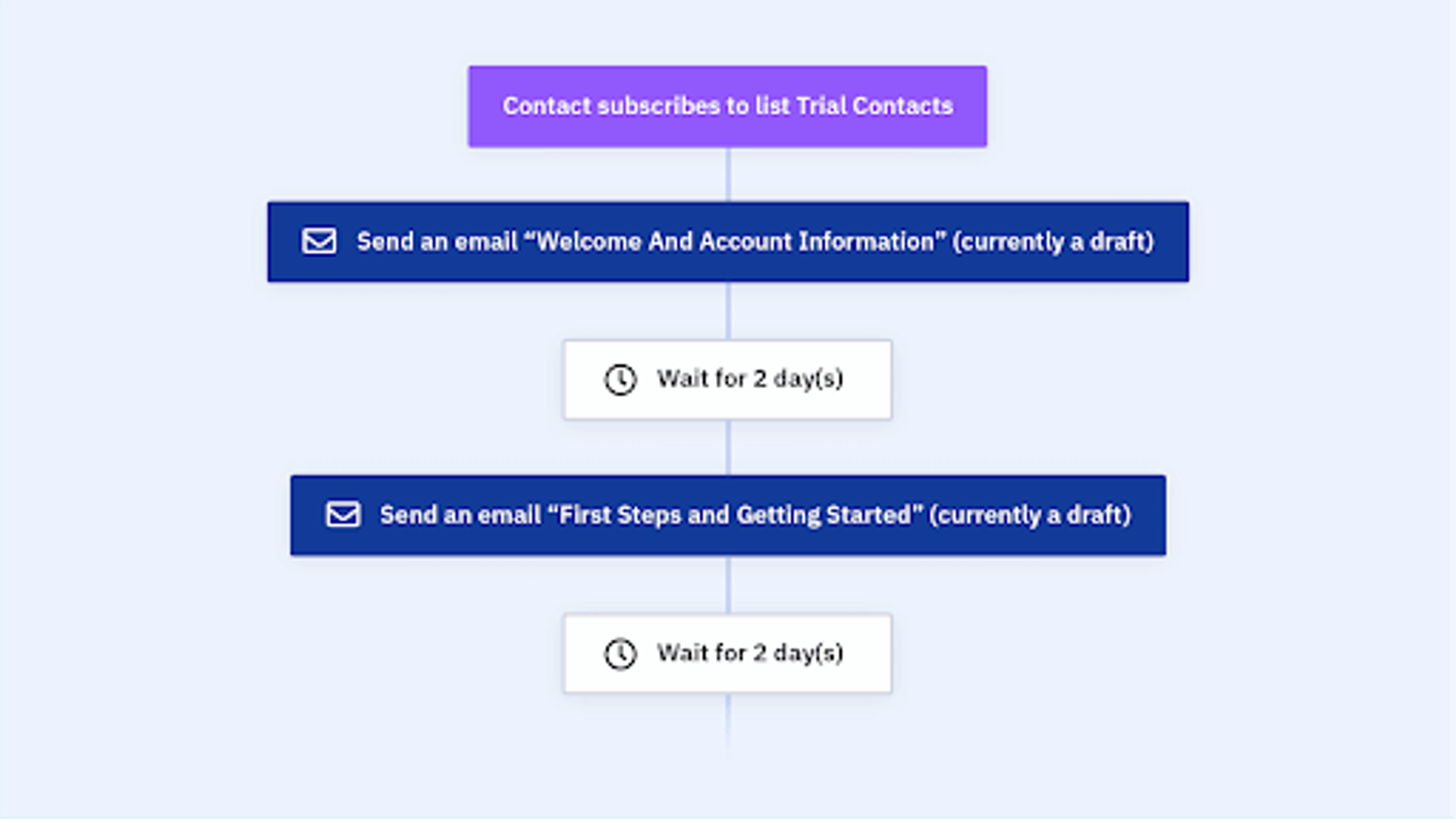
In ActiveCampaign, that welcome series is an automated email workflow. A contact subscribes to a list, the automation sends a welcome email, waits two days, and sends a getting-started email. You build it once, and it runs for every new subscriber.
See the whole customer journey
A CRM shows every new lead, call, purchase, and support request in one timeline. You can see where contacts move quickly and where they stall.
Say most of your leads drop out between the demo request and the first call. With that data in front of you, you can add an automated reminder for the rep and a follow-up email for the lead, then check whether the drop-off shrinks. The same logic works for abandoned carts: find the stage where people leave, change one thing, and measure again.
Work from one set of customer data
When customer data sits in spreadsheets and inboxes, every report is a guess. A CRM gives you sales, engagement, and behavior data in one place, so your reports on pipeline value, lead sources, and conversion rates come from the same record your team updates every day.
Seven tips for building a CRM workflow that works
Every business sells differently, so every workflow ends up a little different. These seven tips hold up across industries and team sizes. Work through them in order the first time, then return to tips 6 and 7 every quarter.
1. Choose a CRM that fits how you sell
Pick the CRM whose pipelines, automations, and reporting match your sales process, because a workflow can only do what the tool allows.
Ask these four questions before you compare vendors:
- What does my process need? List your stages, handoffs, and channels. Check for custom pipeline stages, lead scoring, task assignment, and email and SMS in the same system.
- How easy is it to use? If setup takes weeks of training, your team will keep working in spreadsheets. Have a rep build a simple automation during the trial.
- How flexible is it? You should be able to rename stages, add fields, and change rules without a developer, because your process will change.
- Does it connect to my other tools? Check for native integrations with your forms, ecommerce platform, and billing tool.
Narrow the list to two or three CRMs and start a free trial of each. Build the same small workflow in every one and see which feels natural to your team. For a full walkthrough, read how to set up a CRM.
2. Map your process before you automate it
Write down every step a contact goes through today, fix the gaps, and then automate. Automating a broken process only makes it break faster.
Follow these steps to map your process:
- List each stage, from first contact to closed deal and onboarding.
- Name the owner of each stage, either a person or a role.
- Define the exit rule for each stage: what has to be true before the contact moves on.
- Mark where contacts wait the longest or get lost. These are your bottlenecks.
Keep the first version small. A pipeline with five clear stages beats one with fifteen that nobody keeps up to date. The map also tells you what to automate first when volume grows. For help with stage design, see this guide to building a sales pipeline.
3. Enable collaboration
A CRM workflow only works when everyone who touches a deal can see it and update it.
Look for these collaboration features:
- Shared records and notes. Teammates can comment on a deal and see the full history without asking around.
- Clear ownership. Every deal and task has an owner, and routing rules assign new leads automatically.
- Access for outside partners. Agencies, contractors, and advisors can view reports or specific records without sharing logins.
- Cloud access. Remote and distributed teams need the same live view from any location, which means a cloud-based CRM.
Agree on the handoff between marketing and sales, too. For example, a lead moves to sales when its lead score reaches a set number and the contact has visited your pricing page. Write the rule down so both teams share one definition of a qualified lead.
4. Use workflow automation
Automate the steps that repeat on every deal, and keep the logic simple enough that anyone on the team can read it. Start where the pain is: review your process map and find the steps where leads wait for a person to act.
These steps are strong candidates for automation:
- Sending a confirmation or welcome email when a contact joins your list
- Creating a deal and assigning it to a rep when a lead hits a score threshold
- Creating a follow-up task when a deal sits in one stage too long
- Tagging contacts based on the pages they visit or the emails they click
- Sending a renewal reminder before a contract ends
Build one workflow at a time and let it run before you add the next. Give each one a single goal and a clear end point. Long workflows with many branches are hard to debug, so split them into smaller ones that hand contacts to each other.
Example: a new-lead workflow
One workflow can cover a lead's first week with you:
- Trigger: a contact submits your demo request form.
- Action: send a confirmation email and create a deal in the first pipeline stage.
- Condition: if the lead's company size matches your target, assign the deal to a senior rep. Otherwise, assign it to the next rep in rotation.
- Action: create a task for the rep to call within one business day.
- Condition: if the task is still open after two days, remind the rep and send the lead a follow-up email.
For more ideas, see these eight CRM workflows you can build with ActiveCampaign.
5. Connect the tools you already use
Connect your CRM to the tools where customer data is created, so contacts and activity flow in without manual entry. Typical connections are your website forms, ecommerce store, payment processor, calendar, and support desk.
Integration pays off when the data triggers action. A purchase in your store can tag a contact as a customer, end their nurture emails, and start an onboarding series. Without the connection, someone has to notice the purchase and make those changes by hand.
Build the connections you need now, and check that the CRM has an open API or a large app library for the ones you will need later. ActiveCampaign connects with over 1,000 apps.
Customer example: Tampa School of Real Estate
The Tampa School of Real Estate connected its CRM with email automation and tracked which leads engaged with each email to decide who to follow up with. Monthly sales rose 5x, and the business is trending up about 50% year over year.
Read the full Tampa School of Real Estate story.
6. Test your workflow before it goes live
Run every workflow with test contacts before real customers enter it. A wrong condition or a missing wait step can send the wrong email to hundreds of people, and a test takes minutes.
Use this process to test a workflow:
- Write test cases. Cover the normal path and the edge cases: a contact with no email address, a lead that matches two conditions, a deal that moves backward.
- Run it with test contacts. Use your own email addresses and check each message, delay, and task.
- Ask a teammate to try it. Someone who did not build it will find the confusing parts.
- Fix and rerun. Change one thing at a time so you know what fixed it.
In ActiveCampaign, you can send test emails before a campaign goes out, and an automation stays in draft until you are ready to turn it on. Check the wait times, too. A two-day delay that should have been two hours is easy to miss.
7. Track results and keep improving
Review your workflow's results on a set schedule, and change one thing at a time based on what the numbers show. Set your goals before launch so you know what success looks like. The guide to CRM goals helps you pick them.
Track these measures for each workflow:
- Conversion rate between stages. A sharp drop points to the step that needs work.
- Time in stage. Deals that sit for weeks signal a missing follow-up or an unclear next action.
- Task completion. Overdue tasks show where the workflow asks too much of one person.
- Email engagement. Opens, clicks, and replies show whether your messages match what contacts want.
Check in with the people who use the workflow every day, too. Reps know which tasks help and which are noise. Set a quarterly review, remove steps that no longer earn their place, and update the rules when your offer or audience changes. As volume grows, reuse the same structure and add automation to the stages with the longest waits. For more on measurement, see how to measure CRM success.
How ActiveCampaign helps you build and run CRM workflows
ActiveCampaign is an AI platform for marketers, with Active Intelligence built into every plan. Its sales CRM and marketing automation share one set of contact data, so a workflow can start with an email click and end with a deal assigned to the right rep.
These ActiveCampaign features do the work in a CRM workflow:
- Sales pipelines. Build visual pipelines with custom stages, and move deals through them by hand or by automation.
- Automations. Create deals, assign owners, send 1:1 emails, and create tasks when a contact takes an action.
- Lead scoring. Score contacts on engagement and fit, then trigger a handoff when a lead is ready for sales.
- Sales routing and tasks. Assign deals to the right team member and give each rep a to-do list.
- Win probability. Active Intelligence analyzes the chance each deal will close, so your team can focus on the high-potential ones.
- Sales reporting. Dashboards show pipeline value, conversion, and where deals stall.
You set the rules and approve what runs. Active Intelligence works from your own contact history, so its recommendations reflect your business and your pipeline. See what CRM automation looks like in practice for more examples.
Build your first CRM workflow with ActiveCampaign
Frequently asked questions about CRM workflows
What is a CRM workflow?
A CRM workflow is a series of steps your CRM runs automatically when a contact does something or a deal reaches a stage. Each workflow has a trigger, optional conditions, and actions such as sending an email, creating a task, or assigning a deal. It keeps your process consistent as volume grows.
What is the difference between a CRM workflow and a CRM automation?
A workflow is the full process, from first touch to closed deal. An automation is one trigger and its actions inside that process, such as sending a welcome email when someone joins your list. Most workflows combine several automations with manual steps your team handles.
How do you create a CRM workflow?
Map your current process, define each stage and its owner, and pick one repeating step to automate. Set a trigger, add conditions, and choose the actions. Test with sample contacts, turn it on, and review the results every month. Start with one workflow, such as new-lead follow-up, before you add others.
What should you automate first in a CRM?
Start with lead follow-up. It repeats on every lead, delays cost you sales, and the rules are easy to define: confirm the request, create a deal, assign an owner, and set a task. After that, automate deal stage changes and renewal reminders.